Secure Your Home Network in Ten Minutes
Most home networks are compromised by default settings, not by sophisticated attacks. Four changes fix the common ones.
Change the router admin password from the default, which is publicly known. Update the router firmware, since updates fix known vulnerabilities. A vague complaint like slow or broken sends people to the shop; a measured symptom sends them to the setting.
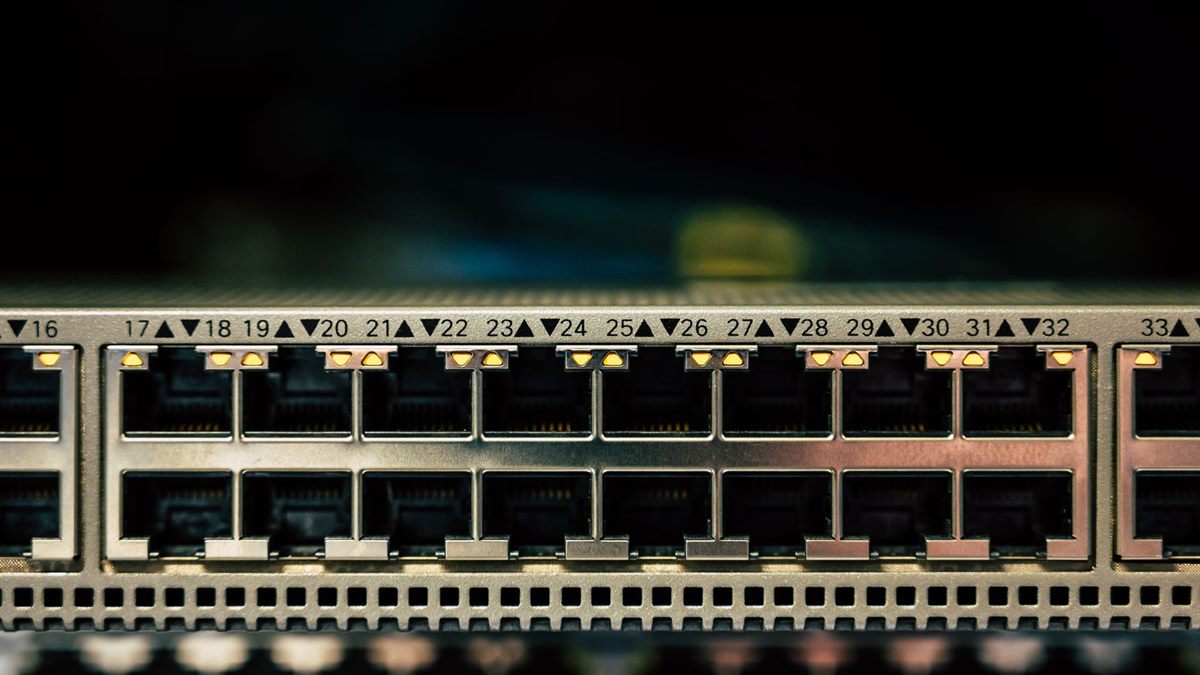
Describe the actual problem
Use WPA2 or WPA3 rather than an open or WEP network. Change the Wi-Fi password to something long and unique. Most home technology problems are configuration problems, and configuration is free to change.
Try the free fix first
Set up a guest network for visitors and smart devices. Disable remote administration unless you specifically need it. Changing several settings at once hides the cause and makes the next problem harder to solve.
Before changing a setting, describe what you expected and what actually happened. Most home technology problems are configuration issues, and a specific symptom points to a specific setting. Change one thing at a time, test it, and note the result, because several changes at once hide the cause. Keep the manual and the model number in one place so the next problem is faster to solve. A note of the model number, the current settings, and the date of the last change turns a frustrating afternoon into a five-minute fix. If a device has no manual, save the support page offline. The goal is not to memorise the system but to leave a trail that makes the next visit easier.
Turn off WPS, which is convenient but easy to attack. Keep a short note of what you changed and when, because the same fault usually returns.
Check these first
- Change the admin password
- Update the firmware
- Use WPA2 or WPA3
- Set up a guest network
Change one thing at a time
Check which devices are connected and remove anything unfamiliar. Keep the router updated automatically if the option exists. Buy hardware only when the free options have been tested and written down.
Place the router away from windows where the signal leaks outside. Use a firewall on the router and on devices where available.
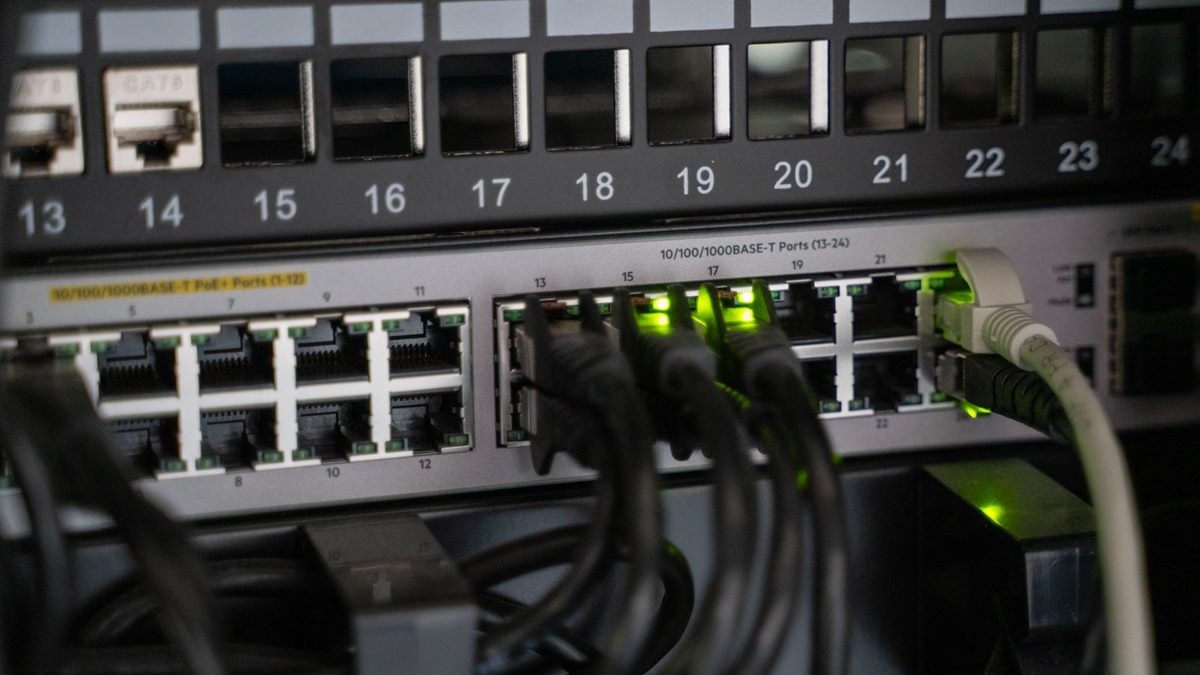
Write down what worked
Change the network name so it does not identify the router model. Review the device list monthly for unknown connections. A five-minute monthly check prevents most of the failures people describe as sudden.
If the first fix does not work, undo it before trying the next one. Stacked changes make a simple fault look complicated and cost more time than starting again. Write down what you changed, when, and what happened, so a returning fault is quicker to identify. Replace hardware only after the free options have been tested and recorded, not because the device feels old.
Do not use the same password for Wi-Fi and the admin panel. Write the settings down in case you need to reset the router. A few deliberate settings make a home network far harder to attack. If you want the wider picture, read Fix Printer Problems Without Calling Support before you decide.
For the underlying guidance, see the FCC home network guidance.
Frequently Asked Questions
How do I secure my Wi-Fi?
Change the default admin password, use WPA2 or WPA3, update the firmware, and set up a guest network.
Is WEP still safe?
No. Use WPA2 or WPA3. WEP is easily broken.
Should I hide my Wi-Fi name?
It adds little security. Strong encryption and a good password matter more.
How often should I update the router?
Enable automatic updates, or check every few months. Firmware fixes security flaws.